
High Dynamic Range (HDR) gaming has become an important feature for players who want more realistic visuals, richer colors, and better contrast. Modern games can look more impressive when bright lights, dark shadows, and colorful environments appear closer to how they look in real life. However, enjoying these benefits requires more than a powerful computer. Your graphics card, monitor, game settings, and display connections must all support HDR.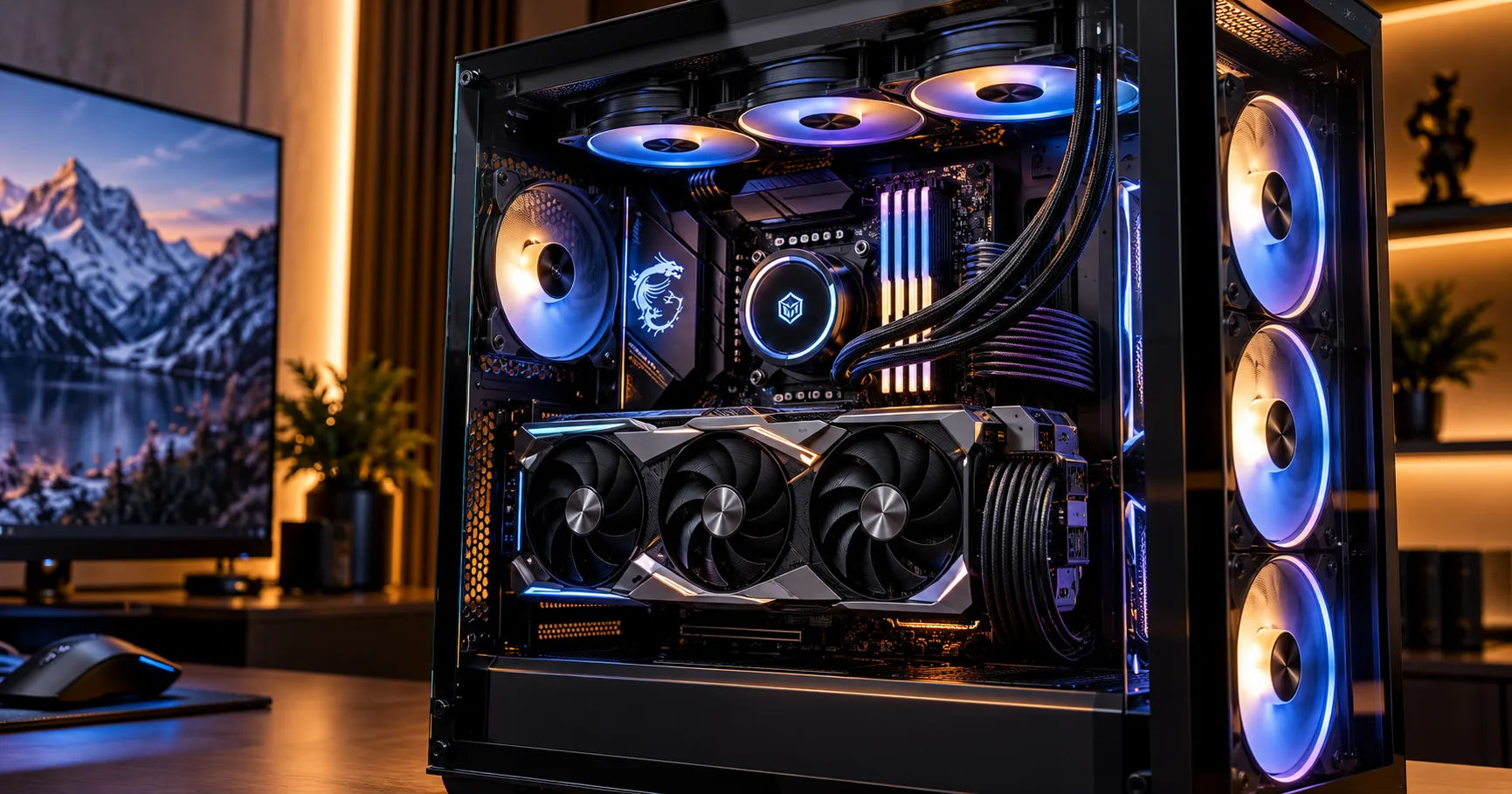
For gamers who want to upgrade their gaming experience, understanding HDR compatibility is essential before purchasing new hardware. A computer may run demanding games smoothly but still fail to deliver HDR visuals if its display or graphics configuration lacks the necessary features. This is particularly important when comparing different gaming setups and planning a long-term investment.
The good news is that gaming pc uae buyers can find systems designed to support HDR gaming, depending on the graphics card, monitor, and other components they choose. However, HDR support is not guaranteed simply because a computer is marketed as a gaming PC. Checking the specifications of each component helps ensure that the complete setup can deliver the intended visual improvements.
This comprehensive guide explains how HDR gaming works, which components support it, how to check compatibility, and what gamers should consider when choosing an HDR-ready computer.
HDR Gaming
What Is High Dynamic Range?
High Dynamic Range, commonly known as HDR, is a display technology that improves the range of brightness and color a screen can reproduce. It allows compatible games to show brighter highlights, more detailed shadows, and a wider range of colors than standard dynamic range, or SDR, displays.
For example, imagine playing a game featuring a sunset over a desert. On an SDR display, the sun may appear bright, but surrounding details can look flat or lose subtle color differences. On a suitable HDR display, the sunlight may appear more intense while the clouds, sand, and distant mountains retain more visible detail.
HDR can also improve dark environments. In a game set inside a dimly lit building, compatible hardware may display brighter lamps alongside deeper shadows, creating a more realistic atmosphere.
The actual improvement depends on the quality of the monitor and the way the game implements HDR. Not every HDR display produces the same results.
How HDR Differs from Standard Dynamic Range
SDR has a more limited brightness range and generally uses a narrower color presentation than HDR-capable systems. HDR content can preserve a wider range of brightness levels and support broader color reproduction when the display and content are designed for it.
However, HDR does not automatically make every image look better. A poorly implemented HDR mode or a display with limited brightness and contrast may deliver only a small improvement over SDR.
The quality of the entire setup matters more than the presence of an HDR label alone.
Does Gaming PC UAE Support HDR Gaming?
The Role of the Gaming Computer
A gaming computer can support HDR gaming when its graphics hardware, software, and connected display are compatible with the feature. Many modern gaming systems can output HDR signals through supported graphics cards and suitable display connections.
The computer processes the game's graphics and sends the resulting image to the monitor. If the game supports HDR, the operating system and graphics drivers are configured correctly, and the monitor accepts the appropriate HDR signal, the feature can work as intended.
Therefore, gaming pc uae shoppers should evaluate the complete system rather than relying on the computer's name or advertised gaming performance.
A high-end graphics card does not guarantee an excellent HDR experience if the monitor has weak brightness, limited contrast, or poor HDR performance. Likewise, an HDR-capable monitor cannot provide the full experience when connected to incompatible hardware or used with an SDR-only game.
Why Component Compatibility Matters
An HDR gaming setup generally requires four essential elements:
-
A graphics card that supports HDR output.
-
A monitor or television that accepts and displays compatible HDR content.
-
A supported connection, such as an appropriate HDMI or DisplayPort configuration.
-
An operating system, graphics driver, and game that support the relevant HDR features.
When these elements work together, players can experience HDR visuals in compatible games.
Before buying a computer, ask the seller whether the complete setup supports HDR at your intended resolution and refresh rate. This is especially useful when you plan to play at 1440p or 4K with a high refresh rate.
Hardware Requirements for HDR Gaming
Graphics Card Compatibility
The graphics card is one of the most important components in an HDR gaming setup. It renders the game's graphics and sends the video signal to the display.
Many modern NVIDIA GeForce and AMD Radeon graphics cards support HDR output. However, the exact capabilities depend on the specific model, connection type, driver support, and supported display modes.
When comparing graphics cards, check the manufacturer's specifications for HDR support, supported resolutions, refresh rates, and available video outputs.
It is also important to separate HDR compatibility from gaming performance. A graphics card might support HDR but struggle to maintain high frame rates in a demanding 4K game. Another card may deliver excellent performance at 1080p while offering a different balance of resolution, frame rate, and visual quality.
Choose a card that meets both your performance goals and your display requirements.
Choosing an HDR-Compatible Monitor
The monitor has a major influence on how impressive HDR looks. Although many screens advertise HDR compatibility, their actual performance varies considerably.
Some monitors accept an HDR signal but cannot produce sufficiently bright highlights or deep blacks to create a convincing HDR image. Others use advanced backlighting or OLED technology to deliver stronger contrast and more noticeable visual differences.
Consider these specifications when selecting a monitor:
-
Peak brightness: Higher brightness can make highlights more visible, although brightness alone does not determine HDR quality.
-
Contrast ratio: Strong contrast helps distinguish bright areas from dark scenes.
-
Color gamut: A wider color gamut allows a display to reproduce a broader range of colors.
-
Local dimming: This feature controls different backlight zones independently, improving contrast on suitable LCD monitors.
-
Panel technology: OLED displays can provide excellent black levels, while high-quality LCD displays with effective local dimming can also deliver impressive HDR.
-
HDR certification: Certifications can help identify tested capabilities, but the specific performance level still matters.
A good monitor can make a greater difference to HDR image quality than upgrading an already capable graphics card.
HDMI and DisplayPort Connections
The connection between the computer and monitor also matters. HDMI and DisplayPort can both carry HDR signals when the relevant versions, hardware, and display modes support them.
For example, HDMI 2.0 supports many HDR configurations, including certain 4K refresh-rate combinations, while HDMI 2.1 offers greater bandwidth for demanding high-resolution and high-refresh-rate setups. DisplayPort capabilities vary by version and configuration.
You should not assume that every port supports every resolution and refresh rate. The graphics card, monitor, cable, and selected display mode must all be compatible.
If HDR does not appear as an available setting, check the manufacturer's documentation for your specific ports and use a suitable cable.
How to Enable HDR on a Gaming PC
Step 1: Check Your Monitor
Start by confirming that your monitor supports HDR input. Review its specifications and user manual to identify the supported HDR formats, brightness capabilities, and compatible connections.
Connect the monitor using a suitable HDMI or DisplayPort cable.
If you use multiple monitors, check that the display you want to use for gaming is selected correctly.
Step 2: Update Your Graphics Drivers
Outdated graphics drivers can cause compatibility issues or prevent certain display features from working correctly.
Download the appropriate driver through the official support software or website for your graphics card manufacturer. Restart the computer after installation if required.
Also install relevant operating system updates, as these can improve display compatibility and HDR functionality.
Step 3: Enable HDR in Windows
On a compatible Windows 11 or Windows 10 system, open Settings and navigate to System > Display.
Select the HDR-compatible display if more than one monitor is connected. Look for the HDR settings and enable the available HDR option.
The precise menu names and available options may vary depending on the Windows version, monitor, and graphics hardware.
If HDR is unavailable, verify the connection, display settings, graphics drivers, and monitor compatibility before assuming that the computer cannot support it.
Step 4: Enable HDR in the Game
Some games automatically detect HDR support, while others require players to enable it in the graphics or display menu.
Open the game's settings and look for an HDR option. If available, enable it and adjust the brightness or paper-white settings according to the game's instructions.
Paper white generally controls the perceived brightness of ordinary white elements, such as menus and text, while the HDR system manages brighter highlights separately.
Avoid increasing every brightness setting to its maximum. Excessive brightness can wash out colors and reduce the visual impact of HDR.
Step 5: Calibrate the Display
Calibration helps the game and monitor produce a more balanced image.
If your system offers an HDR calibration tool, follow its instructions to set black levels, peak brightness, and other available parameters. Some monitors also provide their own picture modes and HDR controls.
Test a few different games afterward. HDR implementation varies between titles, so a setting that looks good in one game may require adjustment in another.
Benefits of HDR Gaming
More Realistic Colors
One of the most noticeable advantages of HDR is its ability to display a broader range of colors. In supported games, landscapes, character designs, vehicles, and special effects can look more detailed and visually appealing.
For example, a racing game may feature colorful cars, reflective surfaces, and bright city lights. An HDR-capable monitor with good color reproduction can make these elements appear more vibrant without sacrificing as much detail in bright areas.
However, a wider color range does not mean that every color should appear extremely saturated. Good HDR reproduction aims for natural-looking colors that match the game's visual design.
Improved Brightness and Contrast
HDR can make bright objects stand out more clearly against darker surroundings. This is particularly useful in games that feature explosions, sunlight, glowing objects, or nighttime environments.
A quality HDR display can reproduce intense highlights while preserving details in nearby areas. This creates a stronger sense of depth and realism.
The results depend on the monitor's actual contrast performance. An inexpensive screen with limited brightness may offer less noticeable improvements than a premium display with effective local dimming or OLED technology.
A More Immersive Gaming Experience
Visual realism can make games feel more engaging. HDR may improve the atmosphere of adventure games, racing simulators, open-world titles, and cinematic action games.
Consider exploring a futuristic city filled with neon signs, illuminated buildings, and dark alleyways. A well-calibrated HDR display can make the differences between these lighting conditions more convincing.
For players who enjoy story-driven games, these visual improvements can add to the overall experience.
HDR Does Not Automatically Increase FPS
It is important to understand that HDR is a visual feature rather than a direct performance upgrade.
Enabling HDR does not automatically increase frames per second (FPS), reduce input lag, or improve the graphics card's processing power. Frame rates depend on the game's workload, graphics settings, resolution, processor, and graphics card.
Some HDR processing can introduce additional workload or configuration considerations, but the impact varies by system and game.
Competitive players should prioritize smooth performance, low input latency, and an appropriate refresh rate alongside image quality.
Which Games Benefit Most from HDR?
Open-World and Adventure Games
Open-world games often feature large environments, changing weather, sunsets, forests, mountains, and detailed lighting effects. These scenes can benefit considerably from HDR when the game implements it properly.
Players may notice more realistic sunlight, glowing skies, and differences between illuminated and shaded environments.
A powerful computer paired with a quality display can provide an impressive experience in visually demanding titles.
Racing and Simulation Games
Racing games frequently feature reflections, headlights, sunlight, and glossy vehicle surfaces. HDR can make these elements look more convincing on a suitable monitor.
In driving simulators, the difference between bright daylight and a dark tunnel may become more noticeable.
Players should still consider refresh rate and response time because smooth motion is important in fast-paced racing games.
Action and Horror Games
Action games often include explosions, bright effects, and rapidly changing lighting conditions. HDR can make these scenes more dramatic when supported by the game and display.
Horror games can also benefit from better shadow detail and carefully controlled highlights.
However, HDR does not guarantee that every dark scene will be easier to see. Developers may intentionally preserve darkness to create tension, and monitor settings can affect shadow visibility.
Older Games and Auto HDR
Some older games do not include native HDR support. On compatible Windows 11 systems, Auto HDR can expand the brightness and color presentation of certain SDR games.
This feature can improve the appearance of supported titles, but it does not transform their original graphics into genuinely native HDR content. The results vary depending on the game and its rendering techniques.
Players should check whether a particular game supports native HDR or works with Auto HDR before expecting the same results across their entire library.
Understanding HDR Certifications and Standards
HDR10
HDR10 is a widely used HDR format supported by many compatible gaming monitors and displays.
It uses static metadata, meaning its HDR metadata describes the content for the overall presentation rather than changing dynamically from scene to scene.
For PC gamers, an HDR10-compatible monitor is a useful starting point. Nevertheless, HDR10 support alone does not guarantee excellent brightness, contrast, or color accuracy.
Two HDR10 displays can produce noticeably different results because their panels and processing capabilities may differ.
VESA DisplayHDR Certification
VESA DisplayHDR certification helps consumers compare display performance using defined testing requirements.
Different certification tiers indicate different performance levels. Higher tiers generally require stronger capabilities, although the exact requirements depend on the certification version and category.
When comparing monitors, consider certified performance rather than simply looking for the words "HDR supported."
For a more convincing experience, look for a well-reviewed display with suitable brightness, contrast, and color reproduction. Microsoft's guidance recommends considering certified displays and higher performance tiers when choosing an HDR monitor.
HDR10+ and Dolby Vision
HDR10+ and Dolby Vision are additional HDR formats that use dynamic metadata to adjust certain aspects of HDR presentation throughout compatible content.
Their availability and implementation depend on the monitor, graphics hardware, operating system, application, and game.
Do not assume that every gaming monitor or computer supports every HDR format. Check the specifications of your intended setup and the requirements of the games you play.
For most PC gamers, confirming reliable HDR10 support and strong real-world display performance is a sensible first step.
Choosing the Right Gaming PC UAE Setup for HDR
Set a Realistic Budget
The cost of an HDR gaming setup depends on the computer, monitor, and performance level you want.
If you already own a compatible graphics card, upgrading the monitor may be enough to begin enjoying HDR in supported games.
If you are building a new system, consider the combined cost of the graphics card, monitor, processor, memory, storage, and cooling.
It is not always necessary to purchase the most expensive components. A balanced setup that matches your preferred resolution and games can provide excellent value.
When comparing gaming pc uae options, check whether the advertised price includes an HDR-capable monitor or only the computer tower. This distinction can make a substantial difference to your budget.
Choose the Right Resolution
Your target resolution influences the graphics card you need.
1080p gaming: This can be a practical option for budget-conscious players who prioritize high frame rates. A suitable HDR monitor can still provide improved visuals.
1440p gaming: This resolution offers a useful balance between image detail and performance. It is a popular choice for players who want sharp visuals without the demands of 4K gaming.
4K gaming: This provides greater image detail but generally requires more graphics processing power in demanding games, especially when high frame rates are also a priority.
HDR can work at all three resolutions when the complete setup supports it. The best choice depends on your budget, preferred games, and performance expectations.
Balance Refresh Rate and HDR Quality
A monitor's refresh rate determines how many times per second it can update the displayed image. A 144Hz monitor can refresh up to 144 times per second when the connected system and selected mode support that rate.
For competitive gaming, a high refresh rate can make movement appear smoother. HDR can improve image quality, but it does not replace the benefits of a fast display.
Some monitors offer both high refresh rates and strong HDR performance, although these models may cost more.
Before purchasing, confirm that your chosen resolution, refresh rate, and HDR mode can operate together. Some combinations have different bandwidth requirements or may require specific cables and ports.
Consider Cooling and Power Requirements
HDR itself does not usually create a major additional cooling requirement. However, running graphically demanding games at high resolutions can place considerable load on the graphics card and processor.
A suitable power supply, effective case airflow, and reliable cooling help maintain stable performance during long gaming sessions.
In the UAE, where ambient temperatures can be high, good case ventilation and appropriate room cooling can be particularly valuable. Keep dust filters clean and avoid blocking the computer's air intake or exhaust.
These measures help protect performance and component reliability regardless of whether HDR is enabled.
Common HDR Gaming Problems and Their Solutions
HDR Option Is Missing
If the HDR option does not appear in Windows settings, start by checking whether your monitor supports HDR and whether the connection is appropriate.
Next, update the graphics drivers and inspect the monitor's on-screen settings. Confirm that HDR is enabled on the display itself if the manufacturer requires it.
If you use multiple monitors, select the HDR-capable display and check the display arrangement. Windows may not support HDR in every mirrored-display configuration.
Microsoft provides additional troubleshooting steps for identifying unsupported display configurations and resolving missing HDR options.
Colors Look Washed Out
Washed-out colors can result from incorrect display settings, poor HDR implementation, or a monitor with limited HDR performance.
Try adjusting the monitor's HDR mode and checking the game's brightness calibration. Update your graphics drivers and make sure the correct display is selected.
You can also compare the game's native HDR mode with SDR to determine which looks better on your particular display.
Do not assume that a more expensive computer will solve a display-quality problem if the monitor is the limiting component.
The Image Looks Too Dark
Some HDR displays have limited peak brightness or struggle to reproduce dark scenes effectively.
Check the monitor's brightness settings, the game's HDR calibration options, and any available local-dimming controls.
If the game provides separate controls for paper white and peak brightness, adjust them carefully according to the instructions.
Increasing brightness indiscriminately may reduce contrast or cause highlights to lose detail.
Performance Drops After Enabling HDR
If performance changes noticeably after enabling HDR, check whether the game has also changed its resolution, graphics settings, or display mode.
Compare frame rates under similar conditions and make sure your drivers are up to date.
For demanding games, reducing certain graphics settings or using a supported upscaling technology may help maintain smoother performance.
Remember that HDR compatibility and graphics performance are separate considerations. A system can support HDR without being powerful enough to run every game at maximum settings.
Is HDR Gaming Worth It?
When HDR Is a Good Investment
HDR is worth considering if you enjoy visually detailed games, cinematic environments, realistic lighting, and immersive single-player experiences.
It can also be attractive to players who use their computers for HDR movies and other compatible media.
The biggest improvements usually come from combining a capable graphics card with a genuinely good HDR display rather than purchasing a computer based on specifications alone.
When You Should Prioritize Other Features
If you mainly play competitive games, you may prefer to prioritize high refresh rates, low input lag, and stable frame rates.
Likewise, if your budget is limited, a good SDR monitor may be a better purchase than an inexpensive HDR display with weak brightness and contrast.
A balanced system is usually more satisfying than one with an impressive specification sheet but an underperforming display.
What to Check Before Buying
Before selecting a computer and monitor, use this checklist:
-
Confirm that the graphics card supports HDR output.
-
Check that the monitor supports HDR10 or another compatible HDR format.
-
Review the monitor's brightness, contrast, and color performance.
-
Confirm that the cable and ports support your target resolution and refresh rate.
-
Verify that your operating system and graphics drivers support HDR.
-
Check whether your favorite games include native HDR or compatible Auto HDR support.
-
Make sure the system can deliver the frame rates you want at your chosen resolution.
-
Confirm whether the advertised package includes a monitor, cable, and other necessary accessories.
Taking these steps can help you avoid compatibility problems and choose a setup that meets your expectations.
Conclusion
HDR gaming can make modern games look more realistic by improving brightness, contrast, and color reproduction. However, the quality of the experience depends on the complete setup, including the graphics card, monitor, connection, operating system, and game.
The answer to whether gaming pc uae supports HDR gaming is yes, provided the selected computer and connected display have the necessary capabilities. Many modern gaming PCs can output HDR, but buyers should verify the specifications of the individual components before making a purchase.
A capable graphics card provides the foundation, while a quality HDR monitor determines how effectively the visual improvements appear on screen. Compatible cables, updated drivers, correct Windows settings, and proper game calibration are also important.
For the best results, prioritize real display performance instead of relying exclusively on marketing claims. Look for suitable brightness, strong contrast, a wide color gamut, and credible HDR certification. At the same time, select hardware that can run your preferred games smoothly at your desired resolution and refresh rate.
Whether you enjoy open-world adventures, racing simulators, action games, or cinematic experiences, HDR can be a worthwhile addition to your gaming setup. By comparing specifications carefully and understanding the technology, you can choose a system that offers an enjoyable combination of visual quality, performance, and long-term value.